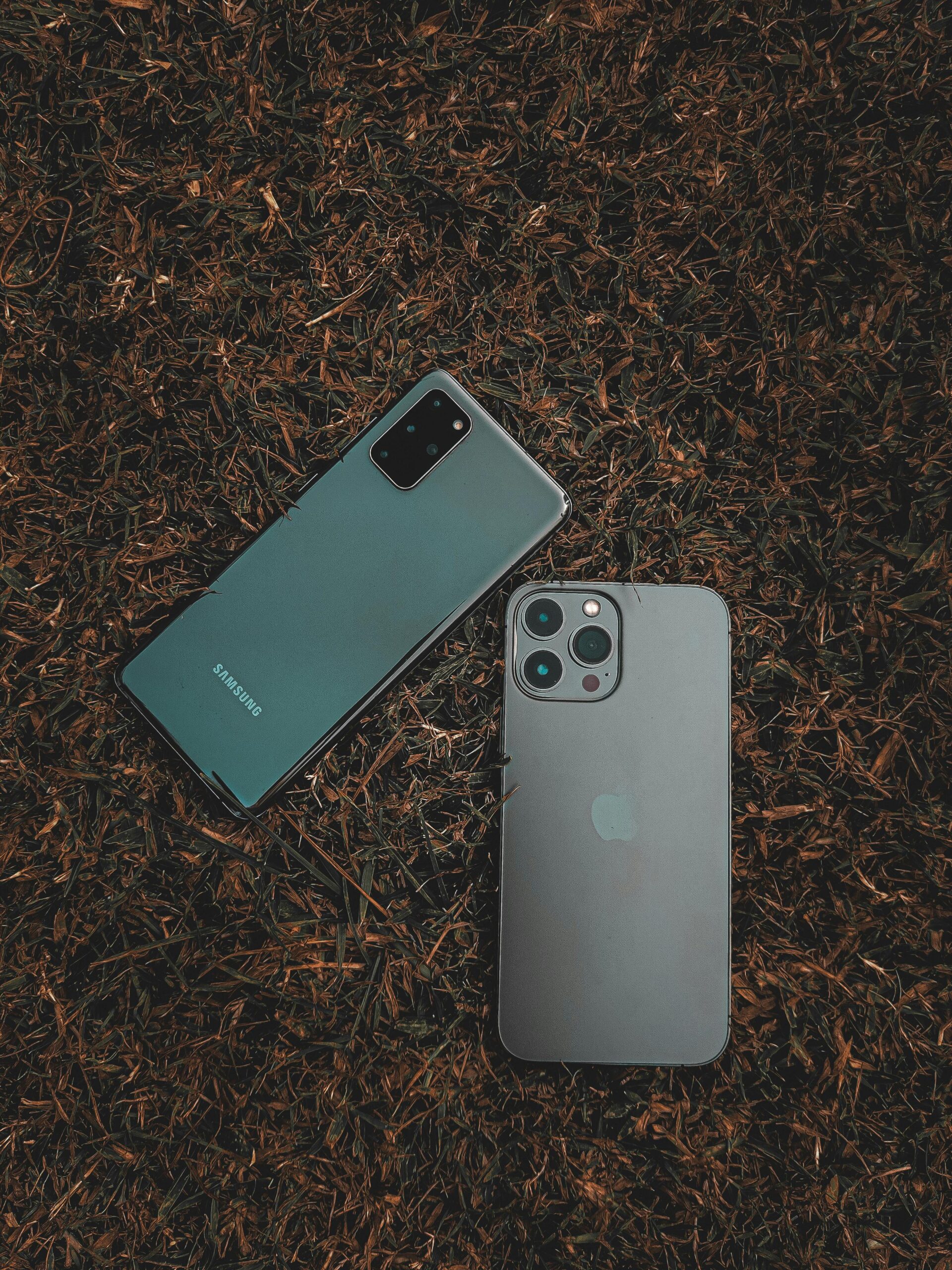

If you are new to iPhone here are three methods that be used to transfer contacts from android to an iPhone easily. I will be guiding you step by step.
1. Transfer Contacts Via Move To IOS
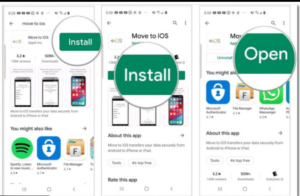
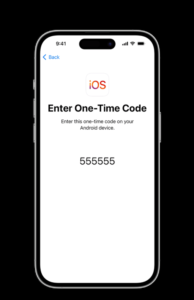
First method is own by Apple its self that is move to IOS app if you want to copy contacts from any android download move to IOS app from play store and install it on your android phone. Now turn on your new iPhone and choose move to IOS than enter the code shown on your iPhone to android mobile. Select Contacts (you can also select photos, messages).This process will take some time to finish depending on the data that you are transferring.
2. Transfer Contacts Via SIM
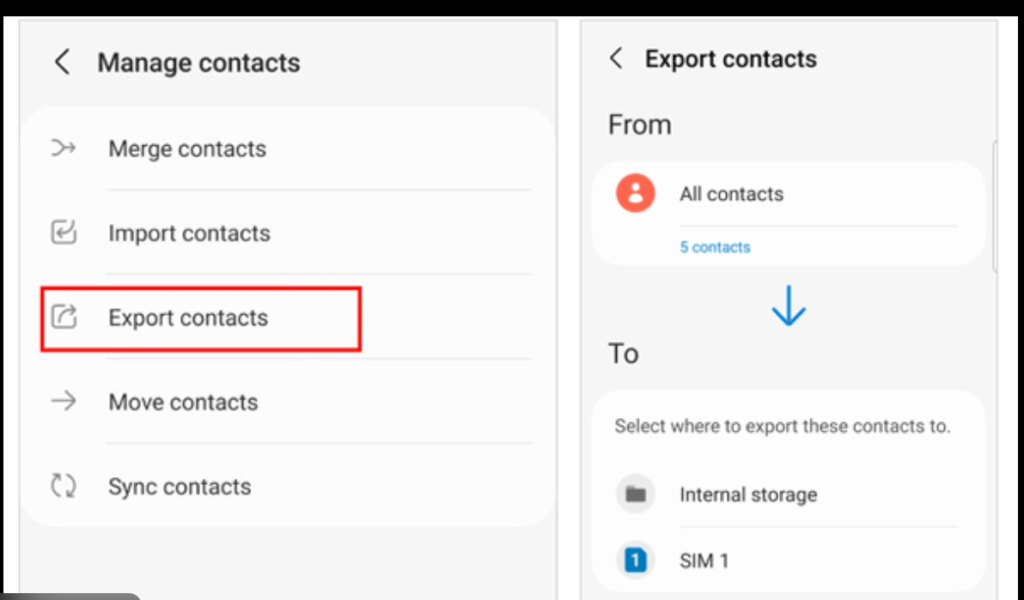
Second method is transferring contacts with physical SIM. Make sure all your contacts are backed up android and exported to the SIM card. To do this go to your android phone contact app tap on the three stripes on the top than go to Manage Contacts than import or export contacts you need to tap on export to get it done. Once this process is completed put the SIM on your new iPhone and to setting and scroll down contacts than click on import contacts this process may take some time.